


WordPress allows you to create a footnote through the More Rich Text options of the Block Toolbar. It’s the fist option when you click the  downward facing chevron.
To create the footnote1, select your text and choose the Footnote option.
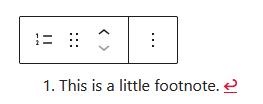
The cursor will jump to the bottom of the editor, where you can enter the footnote text. Now you have created your Footnote Block.
No other way to start a Footnote Block
With my current version of WordPress 6.8.3, there is no other way to create a Footnote Block.
Not with the Block Inserter Icon  , nor with Block Inserter at the right side of a new paragraph. Not even by entering /footnote at the beginning of a new paragraph.
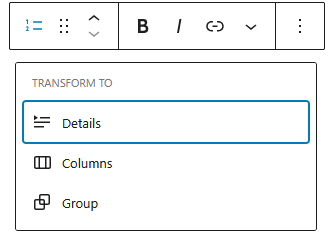
You cannot transform a Paragraph Block into a Footnote Block, but you can transform a Footnote Block into a Details Block, or put it in Columns or a Group.
Settings Panel
The most common options of the block are handled through the Block Tool Bar.
Additional features, however, are available in the right sidebar. To get there, click the sidebar icon  , directly left from the Publish/Save-button.
Here you have additional options for text and background colours, and typography.
Advanced Settings
Blocks also offer fields where you can enter an HTML anchor and one or more CSS classes. Read about these features in Advanced Sidebar Settings of a Block.
The HTML of the Classic Block
You might be wondering why the Footnote Block is identified by the same icon as the ordered list? Well under the hood, it is an ordered list.
Inspecting the source, we see:
<ol class="wp-block-footnotes">
    <li id="55570cb5-6ad6-4eac-aea4-5541707c7f62">This is a little footnote<a href="#55570cb5-6ad6-4eac-aea4-5541707c7f62-link">↩︎</a>
    </li>
</ol>
Every footnote is an item in an ordered list. And each list item gets an id that acts as an HTML anchor, so that we can jump to it. Just like the ordered list link in this paragraph.
An id has to be unique in a page, so Gutenberg generates a unique id for you. The hyperlink gets the same number appended by -link.
Gutenberg adds a wp-block-footnotes class to a Footnote Block for easy styling. Classes come without HTML anchors, so a class can be used multiple times in a page.
- This is a little footnote ↩︎