

Shopping lists, to-do lists, bucket lists. Lists are ubiquitous in everyday life, so you can create them with the Block Editor.
WordPress distinguishes unordered and ordered lists.
A few colours
- red
- green
- blue
- yellow
The items of unordered lists are preceded by a bullet point. The idea here is that the order doesn’t matter much.
How to make tea
- boil water
- pore water in cup
- add tea bag to cup
- wait a little
With ordered lists, the order does matter, and that is why the items in these lists are numbered.
Five ways to start a List
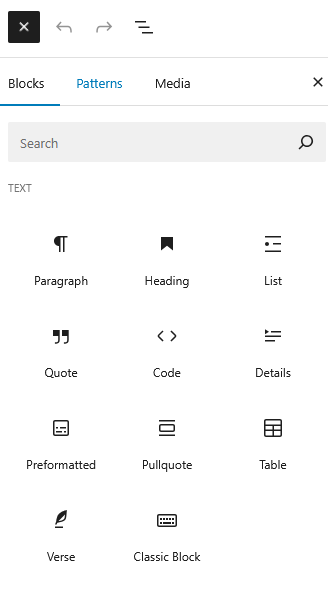
The first route to a list is with the Block Inserter Icon  in the upper left corner. Click it, and select the List Block.
Hitting the Block Inserter at the utmost right of a new paragraph offers you the most recent used Blocks.
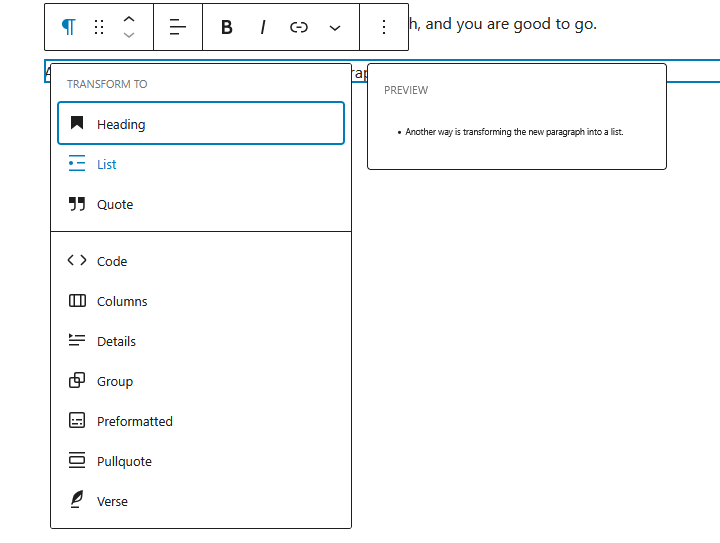
You can also transform a paragraph, or several paragraphs, into a list. When you hover over a paragraph, or a number of selected paragraphs, click the Paragraph icon, and choose List.
A preview is presented directly right of the drop down menu.
Option number four; just type /list at the beginning of a new paragraph, and you are good to go.
The Markdown way is probably the easiest route.
To start an unordered list, enter an asterisk (*) or a hyphen (-) as bullet at the beginning of the paragraph.
This procedure also works with ordered list, just start the paragraph with 1, hit enter, and you have started your ordered list.
List options of the Block Toolbar

The List Block toolbar includes three list specific options. First, it allows you to transform a list into another block, like paragraphs.
You can also easily to transform an unordered list into an ordered list or vice versa.
And since each item in a list is a block in itself, changing the order is a breeze. Just drag the list item to the desired spot. Just be careful with directions.
Settings Panel
The most common options of the block are handled through the Block Tool Bar.
Additional features, however, are available in the right sidebar. To get there, click the sidebar icon  , directly left from the Publish/Save-button.
Here you have additional options for text and background colours, and typography.
Note that these colour and typography options are available for the entire list, as well as individual list items.
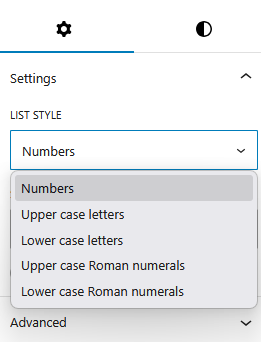
In case of an ordered lists you have some extra options available.
You can choose how you would like to have you list numbered, and you can set the start value. You can even reverse the order.
Advanced Settings
Blocks also offer fields where you can enter an HTML anchor and one or more CSS classes. Read about these features in Advanced Sidebar Settings of a Block.
The HTML of the List Block
The structure of an Unordered List
<ul class="wp-block-list">
<li>red</li>
<li>green</li>
<li>blue</li>
<li>yellow</li>
</ul>
In HTML, the list-items of an unordered list are enclosed with opening <ul> and closing </ul> tags. The Gutenberg editor adds a “wp-block-list” class.
The structure of an Ordered List
<ol style="list-style-type:upper-alpha" class="wp-block-list">
<li>boil water</li>
<li>pore water in cup</li>
<li>add tea bag to cup</li>
<li>wait a little</li>
</ol>
The HTML mark-up of ordered lists is a bit different. The list-items are enclosed between an opening <ol> and closing </ol> tag.
Here too, a “wp-block-list” class is added by WordPress’ Gutenberg.
The numbered ordered list is the default option. With other types of ordered lists, a style attribute is added, like here above for a list with uppercase letters (A, B, C, etc.).