

Font size settings of a block
The Block Editor Sidebar shelters additional options to tweak the typography of a block. The settings available depend of the block selected. Here we check out those of the paragraph.
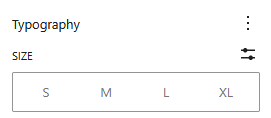
The most used option, hidden in plain sight, is the font size.
By default you can choose from the relative size settings S, M, L, or XL.
Do you prefer more pixel perfect control? Just hit the settings icon  .
.
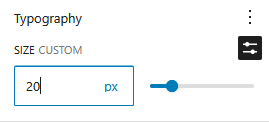
Now you can enter the desired size, like 20 here above, or use the slider to set the font size.
Optional typography settings
For even more settings, hit the ellipsis
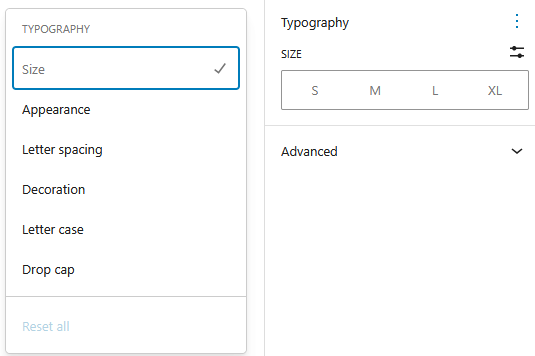
A pop-up appears where you can enable:
- Appearance
- Letter spacing
- Decoration
- Letter case
- Drop cap
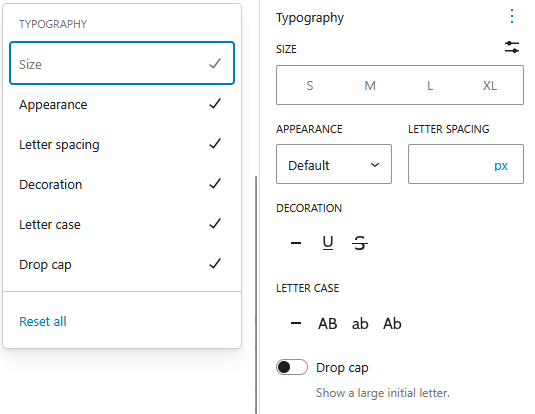
In the image above, all options have been enabled.
Appearance lets you choose from the font-weights that come with your font. The default option is usually Regular of font-weight 400. Most fonts offer Bold, which has a font-weight of 700.
With the letter spacing option you influence the horizontal space between characters. Letter spacing is often used to achieve certain aesthetics, but always keep readability in mind.
Decoration adds three options:
- none (-), the default state
- underline – online not recommended, underlined text is by convention used for hyperlinks
- strikethrough – this option is also available form the rich text options (
 )
)
The Letter case settings give you four options
- none (-) or default, which is sentence case, the first letter is set in capitals
- Upper case – everything in capitals
- Lower case – everything in lowercase text
- Capitalise – the first letter of selected words is put in caps
- Drop cap – available for the first letter of a paragraph
Drop caps, are reserved for the first letter of a paragraph. When you have applied a Drop cap, you can just continue typing your text. The drop cap will disappear, but will return, the moment you are done with the paragraph. So rest assured, you will get you drop cap.
Not happy with the results? Do you want to start over? Just click the Reset all.