

Is the number of blocks growing, then you probably want to organise and reorganise them. Fortunately, every block comes with management features just for that purpose.
To access these, click the ellipsis, the three stacked dots at the right side of the Block Toolbar.
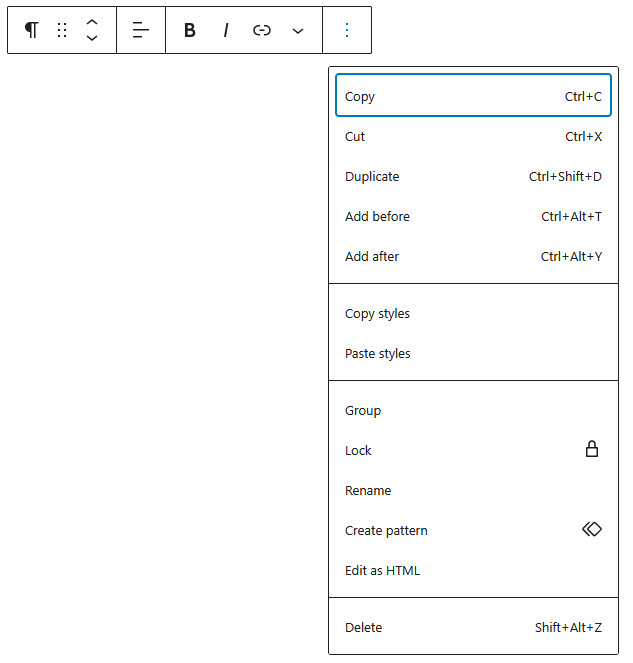
The More options menu drops down appears grouping the available options in four sections:
Copy
The command let’s you copy the selected block, and paste it in on the same page, or on another page with Ctrl+V (Windows & Linux) or Command + V (Mac).
Cut
Instead of copying, you remove the block from it’s original position, and drop is elsewhere with Ctrl+V / Cmd+V. Note that when you forget to paste the cut block before copying something else, you basically delete it.
Duplicate
The duplicate command combines the copy and paste feature in one action. This cloned block appears directly under the block that was duplicated.
Add before / Add after
These commands let you to insert a new block directly before, or directly after, the selected block.
Copy styles / Paste styles
With these commands you copy and paste only the design settings of one block, to another block.
Group
The Group option let’s you combine two are more blocks into a collection of blocks, allowing you to treat this block collection as one logical unit. You can even add a background to a group. And group groups to a nested group.
Lock
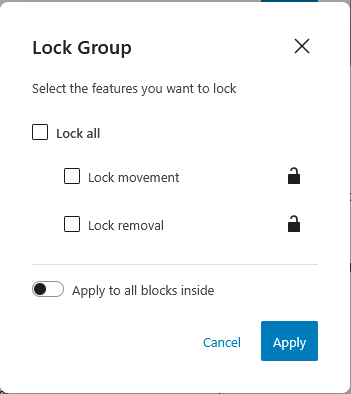
When you attempt to lock a block, a dialogue screen appears with three options; lock the block from moving, from removing, or all of the above. You can still edit a locked block.
When you try to lock a group block, the dialogue screen show the option to lock all blocks nested in it.

Upon locking a block, the move controls are replaced by a lock. To unlock, click the lock in the toolbar, or select the unlock option in the More options menu by clicking the ellipsis.
Rename
When your page has several blocks with a comparable name, like container, section, or table, you can rename a blocks. Either with the More options of the Block Toolbar, or by clicking the ellipsis in List View in the left sidebar.
Create a pattern
When you are planning to reuse a block or a block group, then you can create a pattern. A synced pattern used to be called a reusable block.
After having inserted a pattern, you have the choice to keep it synced or detach it. When your block (group) is a pattern, you will find the detach option in the More options drop down menu.
Edit as HTML

With this option you switch from visually editing to using HTML code. When in HTML mode, you can switch back by clicking Edit visually in the Block Toolbar,
Delete
Obviously, you can also delete a block.