

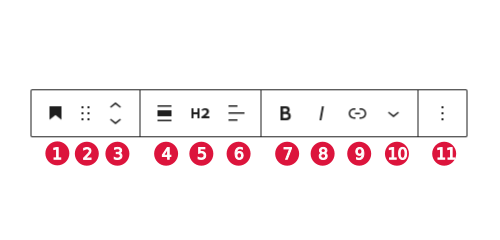
The Block Toolbar is block specific, and contextual aware. This means that the available controls you can choose form depend on the type of block that you have selected.
The Block Toolbar consists of four groups, each section clearly bordered by a vertical line.
From left to right you see:
- block label and positioning options
- alignment options
- text formatting
- More options
Let’s have a closer look at the elements and their functions.
1. Block label
The first icons, the block label, indicates what type of block you are working on. Clicking the block label allows you to transform this block type. You can transform a heading, for example, into a paragraph or a list.
2. Drag and drop handler
The option with the double ellipsis lets you drag a block, and drop it anywhere else on the page.
3. Movers
Although the next option might appear as one icon, these are actually two movers. With the up arrow, you move the selected block one block up. And, indeed, clicking the down arrow, moves the selected block on block down.
4. Alignment
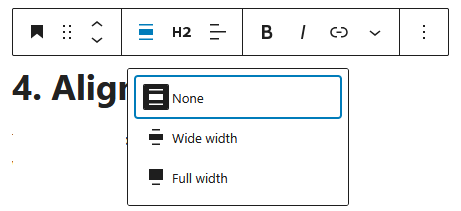
This alignment option is available when your theme supports it. You set the width to which the block is aligned to. When you left align a site title for example, do you want it left aligned within the content area or full width?
5. Block-specific
Block-specific controls, as with a heading for example, let you set a H1, H2, H3, H4, H5, or H6 heading.
6. Text alignment
When aligning text, you can choose from left, centre, or right.
7. Bold
Let’s you toggle between bold text, or none bold text. You can also use Ctrl+B or Cmd+B.
8. Italic
Likewise, you can switch between italic text or non-italic text. Alternatively, use Ctrl+I or Cmd+I.
9. Link
The Link option gives lets you to transform text into a link. The keyboard shortcut is Ctrl+K or Cmd+K.
10. Supplementary tools
This down arrow gives access to even more tools; footnotes, highlight, inline code, inline image, keyboard input, language, strike through, and sub and superscript. These options will be detailed in another post.
11. More options
The More options include block management features like duplicate, insert before or after another block, copy and past styles, and create a pattern. These options are described in a separate post.