

Settings Panel in the Sidebar
The majority of the block options are offered through the Block Tool. Additional features, however, are available through the right sidebar.
These options vary depending the block you have selected. This page describes the sidebar settings of the paragraph.
To get there, click the sidebar icon  , directly left from the Publish/Save-button.

Here you see three sections:
- a brief description of the block regarding
- colour settings for text and background
- typography settings
- advanced settings which are collapsed by default
Text

For starters, you can change the font colour, and the background of the text.
When you select Text, a little dialogue window appears. You can choose from the Global Colours, as set with the Customiser. Do you want another colour? Then hit the chequered surface. A colour picker shows up.
Now pick here a hex colour, or when you prefer the RGB or HSL colour model, select one of those by clicking the down arrow. Click the ESC-key to go back to the Global Colours, with another ESC you are done.
Background
You have the same options for the background, and one more.
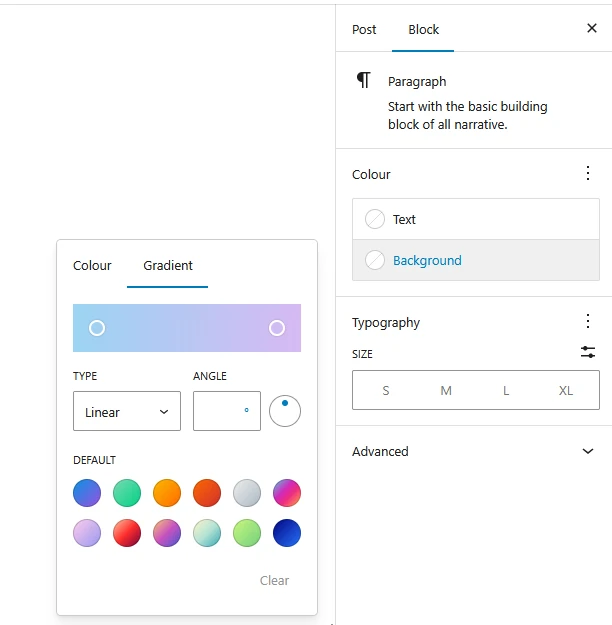
Next to picking a solid background colour, you can get create a sophisticated, gradual blend of colours at the Gradient tab. You can pick one of the twelve precooked colour schemes, or create your own.
You can choose from two types of gradient:
- a linear gradient – from one side to the opposite side
- a radial gradient – from the inside out
Whatever you prefer, next you set your two colours – or the same colour twice! You set the – or the with colour picker – and the alpha channel with the lower channel.
With an alpha value of 100%, the colour is opaque, completely solid. The lower the degree of the alpha channel, the more transparent the colour becomes. Transparency layers make a good match with image backgrounds.
Typography
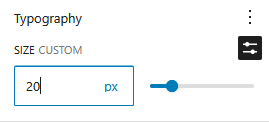
Here you can change the font size, in two distinct ways:
click the settings icon  and set a custom size in px, em, rem, vw or vh, either manually by entering the desired value, or with the slider
relatively increase or decrease the font size by selecting S, M, L, or XL, or