

Next to the Quote Block, WordPress offers the Pullquote Block to present someone else’ words.
Everything that has a beginning, has an end
The Oracle
Compared to the Quote Block, the Pullquote Block is more a ‘fill in the blanks’ exercise.
In addition, the Pullquote Block is more generous with whitespace. Because of this extra whitespace the quote gets even more emphasis than with the Quote Block.
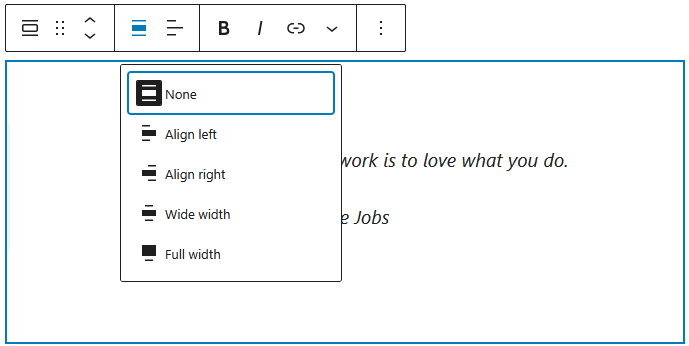
And the Pullquote Block offers more alignment options than the Quote Block.
Four ways to start a Pullquote Block
The first way to start a heading is with the Block Inserter Icon  in the upper left corner. Click that icon, and select the Heading Block.
When you do not immediately see the Pullquote Block, you can either browse the Block Explorer, or search for the block with the search form at the top of the explorer.
Hitting the Block Inserter at the right side of a new paragraph shows you the most recent used WordPress Editor Blocks. However, you can search here too.
Another option is typing /pullquote, at the beginning of a new paragraph.
Your last option is transforming a paragraph into a pullquote. Hover over the paragraph, click the paragraph icon, the first icon at the left, and select pullquote.
Settings Panel
The most common options of the block are handled through the Block Tool Bar.
Additional features, however, are available in the right sidebar. To get there, click the sidebar icon  , directly left from the Publish/Save-button.
Here you have additional options for text and background colours, and typography.
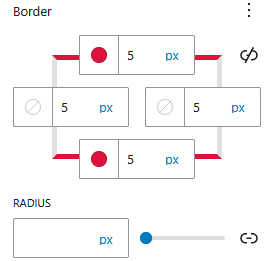
The Pullquote Block adds design options for a border to the Settings Panel in the right sidebar.
You define where you want to have a border, how thick the line should be, and what colour that line should have. When you omit a colour, the border will be transparent.
The value in the radius field defines how round corners of your borders or background are. Click the chain icon right to enter separate values for the corners.
Advanced Settings
Blocks also offer fields where you can enter an HTML anchor and one or more CSS classes. Read about these features in Advanced Sidebar Settings of a Block.
The HTML of the Pullquote Block
<figure class="wp-block-pullquote"><blockquote><p>Everything that has a beginning, has an end</p><cite>The Oracle</cite></blockquote></figure>
Just like the Quote Block, the quote of the Pullquote Block is encapsulated by the HTML <blockquote> element.
The source of the quote is enclosed with the inline <cite> element.
The Quote and Pullquote Blocks, both use the HTML <blockquote> element. The use of different classes and the addition of the <figure> element allow different styling.
The <figure> HTML element has an optional <figcaption>. Unfortunately, the Pullquoute Block doesn’t offer an easy way to add a <figcaption>.
Disclaimer: to simplify the code presentation, I left in the wp-block-pullcode class in the HTML above, but removed the following styling from the code block:
style="border-radius:30px;border-top-color:var(--accent);border-top-width:5px;border-right-width:5px;border-bottom-color:var(--accent);border-bottom-width:5px;border-left-width:5px">