

The Block Toolbar displays the most used rich text options of the Block Editor; Bold, Italic, and Link.
In the offline world, people also used to underline a lot. Hypertexts, links, are underlined on the web. Because of that, underlining is considered bad practice online. It can confuse and disappoint visitors to your site.

The Block Editor, however, has a lot more rich text features to offer, than the three presented in the toolbar. To access these, click the down arrow in the toolbar – the one at the right.
Let’s have a closer look at these at the rich text options
Footnote
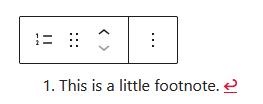
To create a footnote1, select the desired text and click the Footnote option from the drop down menu. The cursor will jump to the bottom of the editor, where you can enter the footnote text.
Clicking the red return arrow of behind the footnote text, brings you back to the small raised number of the footnote. To delete a footnote, just delete this superscripted number in your content.
Highlight

When you want to highlight text, a little dialogue window appears. First you have to choose, what you want to highlight. The text itself, or the background of the text?
In the image above, I’ve selected Background. Next, you can choose from your Global Colours. I want yellow, which is not among them, so I hit the chequered surface. A colour picker shows up to rescue.
You can pick any hex colour, or when you prefer another colour model than Hex, click the little arrow where you can opt for RGB or HSL.
Hex is okay, and I even know the code regarding, so I enter #fff000. That’ is. Click ESC to go back a step, or twice to close the dialogue wizard. Done!
Inline code
There is no need to use the Code Block of the editor, if you just want to include a few words of code in your text. Instead, you can use the Inline code option.
Let’s demonstrate this with the highlighted text above. When check that code with the Inspector of your browser, that code looks something like style="background-color:#fff000;color:#000000".
This is an example inline code, and it tells us that the background color is yellow, and the text black. Inline code is formatted differently, and it is marked to that the code is not executed accidentally.
Inline image
With the Inline image feature, you can mix and max text just like the code above. This works great with icons. I just love to publish with  , it’s my content management system of choice.
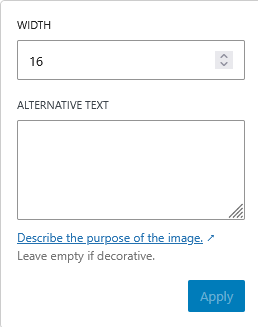
Just select the Inline image option from the drop down menu and select your image. After adding the image, click it, and you get the chance to adjust the size.
Keyboard input
When writing instructions, it can come in handy to convey what a learner has to enter with the keyboard. One way to do this, is with the HTML <kbd>-tag, which is added with the Keyboard input option.
Language
WordPress not only lets you write in any language, it also let’s you mix language with instructions for spell checkers. I write here in English, but suppose I get philosophical and write C’est la Vie.
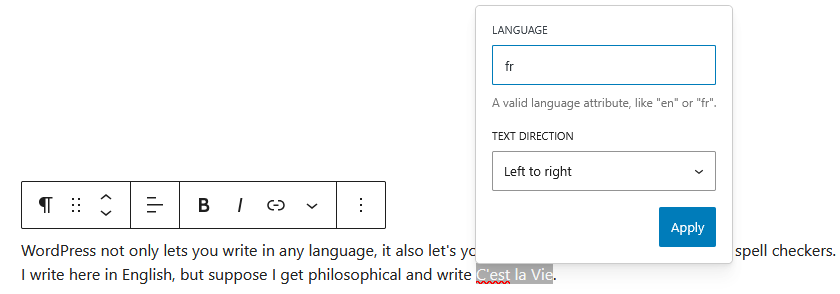
Then my spell checker thinks I’m messing up, and marks the French text with a squiggly red line. When I mark this text as French, and I have a multilingual spell checker, the checker will recognise the text as French.
Strikethrough
According to the spell checker of my browser, Strikethrough is misspelled. But don’t worry, the WordPress team is correct. Strikethrough is the noun describing a horizontal line through text.
However, when you select text and choose the Strikethrough option, you strike through text. The noun is one word, the verb is writing in a two-word form.
Subscript and Superscript
A subscript is a character slightly below the baseline of the text, while the superscript is place a little higher than the rest. You have already seen a superscript in action with the Footnote here above.
Okay, may be not as fancy as E=mc2, but it I love to swim in H2O 🙂