

WordPress is open source software, so code is just around the corner. Obviously, WordPress offers means to publish code. There is a Code Block for that.
This block is derived from the <code> tag, an inline HTML element. Inline means you can use it in a sentence or in a paragraph. Let’s start there, with an example.
WordPress has a function wp_trash_post(). When you delete a post or a page, this function moves it to the recycle bin.
wp_trash_post() is code. The WordPress inline code option, a rich text option available through the block toolbar, is used here to apply the proper markup.
When you inspect the source code of the paragraph it looks like this:
<p>WordPress has a function <code>wp_trash_post()</code>. When you delete a post or a page, this function moves it to the recycle bin.</p>
The trash function is enclosed with the HTML code element, with opening <code> and closing</code> tags. The HTML code tag works fine with one or a few words.
When you want to publish a chunk of code of two or more line, than the inline code tag falls short. That is where the Code Block comes in.
Here are playful instructions for making a cup of tea presented with the Code Block:
if (water < 100 degrees Celsius) {
    leave_the_water_on_the_stove();
} else {
    pour_water_in_the_cup();
    add_a_tea_bag();
    wait_until_tea_is_strong_enough();
    enjoy();
}
Okay, so far this little prelude to the Code Block. How do we create one?
Ways to create a Code Block
You can create a Code Block with the Block Inserter Icon  in the upper left corner. When you don’t see the Code Block, search for it.
Another option is the Block Inserter at the right side of a new paragraph. Same procedure here, when you don’t see the Code Block, just search for it.
Another way, is entering /code at the beginning a new paragraph.
And of course, with the first button of the Block Toolbar, we can transform a paragraph into a Code Block.
With the same icon button, we can transform the code block into a group.
if (water < 100 degrees Celsius) {
    leave_the_water_on_the_stove();
} else {
    pour_water_in_the_cup();
    add_a_tea_bag();
    wait_until_tea_is_strong_enough();
    enjoy();
}
We actually put the block in a wp-block-group. Now we can make it stand out by adding some extra background with the colour options of the Settings Panel.
The Block Toolbar of the Code Block
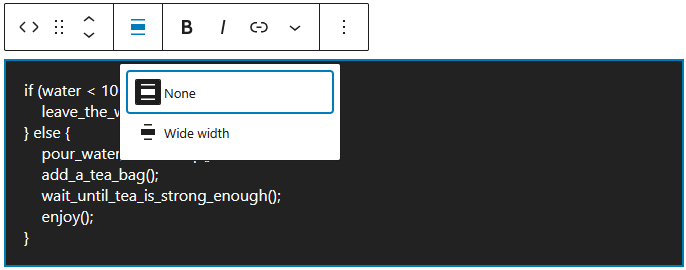
The Block Toolbar of the Code Block offers most of the usual features of the Block Toolbar. The change alignment tool deserves a little more attention here.
The alignment tool has two options:
- None – which is the default state
- Wide width – which pushes the code block beyond the content width
Settings Panel
The most common options of the block are handled through the Block Tool Bar.
Additional features, however, are available in the right sidebar. To get there, click the sidebar icon  , directly left from the Publish/Save-button.
Here you have additional options for text and background colours, and typography.
Advanced Settings
Blocks also offer fields where you can enter an HTML anchor and one or more CSS classes. Read about these features in Advanced Sidebar Settings of a Block.
The HTML of the Code Block
When we inspect the code block above, we see:
<pre class="wp-block-code"><code>if (water < 100 degrees Celsius) {
leave_the_water_on_the_stove();
} else {
pour_water_in_the_cup();
add_a_tea_bag();
wait_until_tea_is_strong_enough();
enjoy();
}</code></pre>To maintain the presentation as intended, the code is not only included in <code> tags, but also wrapped in the <pre> tags of HTML’s preformatted text element.
The <code> element is an inline element, the <pre> element is a block level element. Inline elements can be included in block level elements. Not the other way around.
To maintain the correct presentation of multiline code, the code tag needs help of the Preformatted Block. The Code Block takes care of that.
Disclaimer: to simplify the matter a bit, I left the wp-block-code class in the HTML code above, but removed the following styling classes from the code block:
has-base-3-color has-contrast-background-color has-text-color has-background has-link-color