

The Classic Block provides the experience of the original Classic Editor with a TinyMCE look – within the Block Editor.

When you open a post or a page created with the Classic Editor, the Classic Block presents you the option to edit that content, or convert is to Gutenberg blocks.
Three ways to create a Classic Block
The first way to start a heading is with the Block Inserter Icon  in the upper left corner. Click that icon, and select the Classic Block.
When you do not immediately see the Classic Block, you can either browse the Block Explorer, or search for the block with the search form at the top of the explorer.
Another option is the Block Inserter at the right side of a new paragraph. Same procedure here, when you don’t see the Classic Block, just search for it.
The third option is typing /classic, at the beginning of a new paragraph.
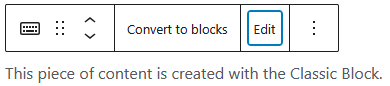
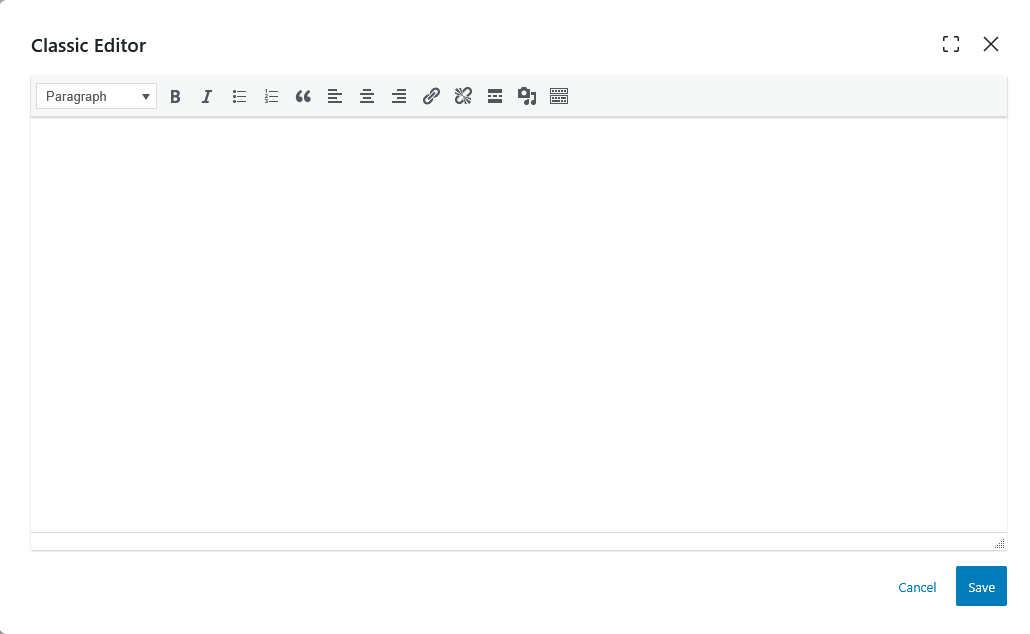
With the Classic Block Toolbar, you can convert a block into a Gutenberg block, edit it in a TinyMCE like way, as shown in the images here above, or and edit it as HTML.
A little history
June 2017, the Gutenberg editor was introduced as a plug-in. Of course, I tried it, but I wasn’t an early adopter. I preferred the Classic Editor which my custom buttons.
With the release of WordPress 5.0, in December 2018, Gutenberg became the default editor. I reluctantly switched over.
The Classic Editor is still available as a plug-in, and apparently over 9 million WordPress installations have the plug-in activated.
The HTML of the Classic Block
A paragraph created with the Classic Block is parsed to the <p> HTML element. On the front-end you cannot see whether the content was created with the Classic Block.