

The majority of the Block settings are handled through the Block Toolbar of the block. Most blocks have advanced settings hidden in the right sidebar. Hit the sidebar icon next to the Publish/Save button.

The Advanced settings are located directly below the more block specific controls. The down arrow indicates there is to see more. When you access the advanced settings, the arrow turns upwards.
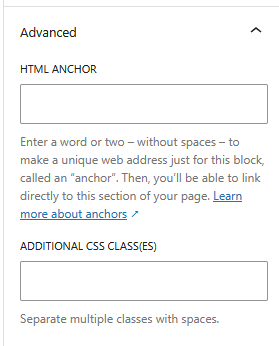
Here you find fields where you can enter an HTML Anchor and one or more CSS classes.
HTML Anchor
To demonstrate the how a HTML-anchor works, I have added one to the heading of this paragraph.
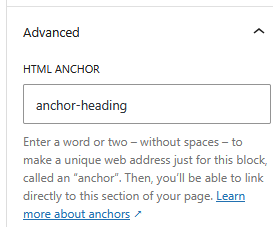
The name of the anchor is “anchor-heading”. With that anchor you to jump directly to here. Here’s the full link https://wpblocks.eu/advanced-sidebar-settings-of-a-block/#anchor-heading.
You can also use anchors to create internal page links. With this link, for example, you jump right back to the first paragraph of this page.
Additional CSS Class(s)
With the Block Toolbar and the Sidebar Settings of Blocks, you have a lot of power at your fingertips. When you just cannot achieve the design you want, adding an additional CSS class might help you to achieve your goal.
First you enter a class name in the Additional CSS Classes field. Next, you address the HTML element(s) having that class with CSS. Headings, and paragraphs, are examples of HTML elements.
Cascading Style Sheets (CSS) is beyond the scope to this blog. For a taste of it, check out the CSS pages of the Mozilla Development Network (MDN). Note that using CSS requires an understanding of HTML.