

Paragraphs need a buddy, they need company of a heading. Headings are import. Headings allow a visitor to skim a webpage and determine whether start reading, or leave.
Six ways to add a Heading
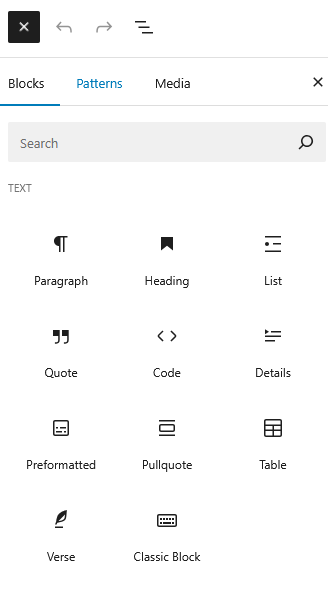
The first way to start a heading is with the Block Inserter Icon  in the upper left corner. Click that icon, and select the Heading Block.
Hitting the Block Inserter at the right side of a new paragraph shows you the most recent used WordPress Editor Blocks.
Another option is typing /heading, at the beginning of a new paragraph.
Or, enter /h1, /h2, /h3, /h4, /h5, or /h6, depending on which type you need.
Markdown provides the fifth manner. For a H2 heading, enter ## followed by a space, prior to your heading. Those ## are two hash or pound signs.
And the last, but not the least, option is transforming a paragraph into a heading. Hover over the paragraph, click the paragraph icon, the first icon at the left, and select heading.
Not all headings are created equal
The H1 is the most important heading type, applied once per page, for the page title.
The H6 are the least important, and thus presented in the smallest font size of all six.
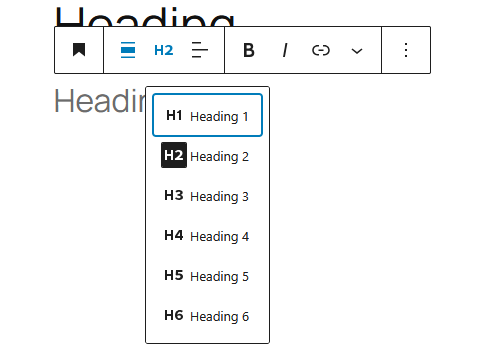
The above explains why H2 is the default option of the Heading Block. To switch to another type, just click the H2 in the block toolbar and select the desired type.
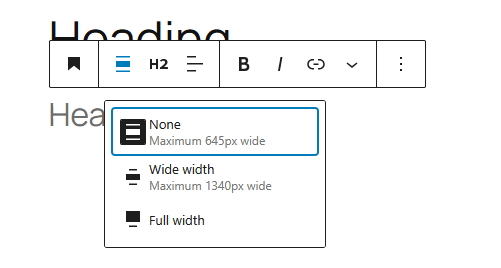
Compared to the Paragraph Block, the toolbar of the Heading Block adds an alignment option, one that cooperates with the text alignment option.
In the image above, you see both at either side of H2.
Selecting the Wide with or Full width option determines how far left or right a header floats when you choose for a left or right alignment with the text alignment.
These options are contained, or content width, respectively full screen width. Choosing one over the other has no effect when centring!
Transforming a Heading Block
You can also transform a heading into a paragraph, a list, or a quote.
Transforming a Heading Block
Adding a heading to a group lets the heading stand-out with additional padding. You can even add some colour with the options in the Settings Panel.
Settings Panel
The most common options of the block are handled through the Block Tool Bar.
Additional features, however, are available in the right sidebar. To get there, click the sidebar icon  , directly left from the Publish/Save-button.
Here you have additional options for text and background colours, and typography.
Advanced Settings
Blocks also offer fields where you can enter an HTML anchor and one or more CSS classes. Read about these features in Advanced Sidebar Settings of a Block.
The HTML of the Heading Block
There are six levels of headings, running from the highest h1 down to the h6. Generally, HTML elements have an opening and a closing tag like for example <h2> and </h2>.
<h2 class="wp-block-heading">HTML Presentation of a Heading Block</h2>The Gutenberg editor adds a class="wp-block-heading"> for styling purposes.